
Search by image
Search by image ranks your library by how closely each prop looks like a picture you provide. Use concept art for a set you are dressing, a screenshot of a scene you want to match, or a photo of a real object.
In the apps
Section titled “In the apps”In the web library or the desktop app’s Cloud Library, click the Search by image button next to the search box and pick a PNG or JPEG file. You can also open the command palette with Ctrl+K and choose Search by image.
The grid shows the 50 closest matches, best first. A banner above them shows your image and reads “Showing N visual matches for” your file name. Click Clear image search to go back to normal results. Image results are not saved in the page address, so you can’t share them as a link and Back does not restore them.
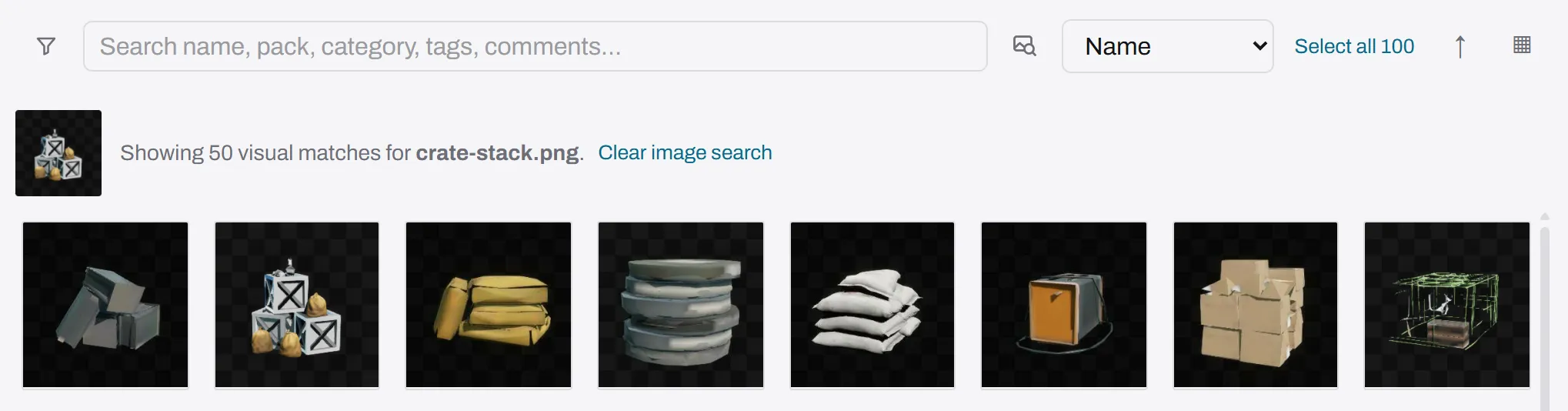
The apps apply the search text and filters you have set. With any of them active, the banner adds “within the current search and filters”. Change a filter and the same image runs again under the new filters.
If the request fails, the app shows “Image search failed” with the reason. If nothing matches, it shows “No visually similar assets found.”, or “No visually similar assets match the current search and filters.” when a search or filter is active.
The desktop app’s Local Library has its own Search by image for files on your computer. It runs on your machine and needs semantic search turned on first. See Local Library.
Image requirements
Section titled “Image requirements”- PNG or JPEG. Prophouse refuses other formats, including WebP and GIF.
- Up to 16 MiB through the apps and the REST API.
- Through the MCP tool, the whole request must be 1 MB or less. Keep the image under about 500 KB before base64 encoding. A few hundred pixels across is enough.
In the API and for agents
Section titled “In the API and for agents”For REST, send the image bytes as the request body.
curl -X POST "https://api.prophouse.dev/api/v1/entries/search/image?type=mesh&limit=20" \ -H "Authorization: Bearer ph_live_xxxxxxxxxxxx" \ -H "Content-Type: application/octet-stream" \ --data-binary @concept.jpgFor MCP, call the search_props_by_image tool with the image in image_base64.
The filters work here too, as query parameters (REST) or tool arguments (MCP). You can also pass text as q (REST) or query (MCP). It acts only as a keyword filter. Results must match the words, and the image alone decides the order.
Image search is a read. API keys with read-only access can use it.
What you get back
Section titled “What you get back”You get one page of results, best match first. limit sets the page size, up to 200. The default is 50 for REST and 25 for MCP. There is no cursor. To see more, raise limit or narrow the filters.
The REST response has entries and total_ranked, the number of props ranked before the limit cut the list. The MCP tool returns props, count and total_ranked.
Each result has a score. Use it for ordering only. It is not a similarity percentage.
Errors
Section titled “Errors”| Error | Cause |
|---|---|
VALIDATION (422) |
The file is not a PNG or JPEG, can’t be read as an image, or is larger than 16 MiB. |
VALIDATION (MCP tool error) |
image_base64 is not valid base64. |
EMBEDDINGS_UNAVAILABLE (503) |
Image search is down for the moment. Text search still works. Wait, then try again. |
| HTTP 413 (MCP only) | The MCP request is larger than 1 MB. Send a smaller image. |